AnimatePhotoAnimatePhoto

Reference to Video AI

Free reference to video AI. Upload up to 10 reference images and generate one consistent video — type @ to cast a face, an outfit or a product straight into the scene.

Your reference videos

Please login to view videos

Consistent Characters, Scene After Scene

The hardest problem in AI video is keeping the same face and outfit across shots. Reference to video solves it: upload a few photos of your character and every generated frame stays true to them — same face, same clothes, new scene.
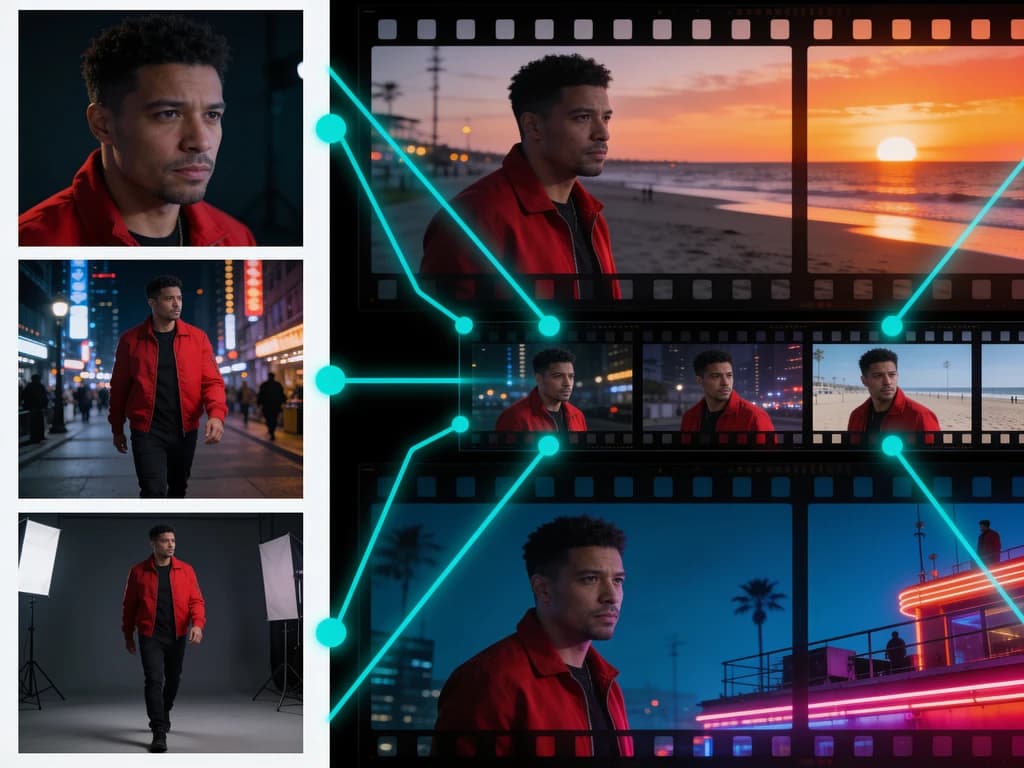
Same character kept consistent across three AI-generated video scenes from reference photos
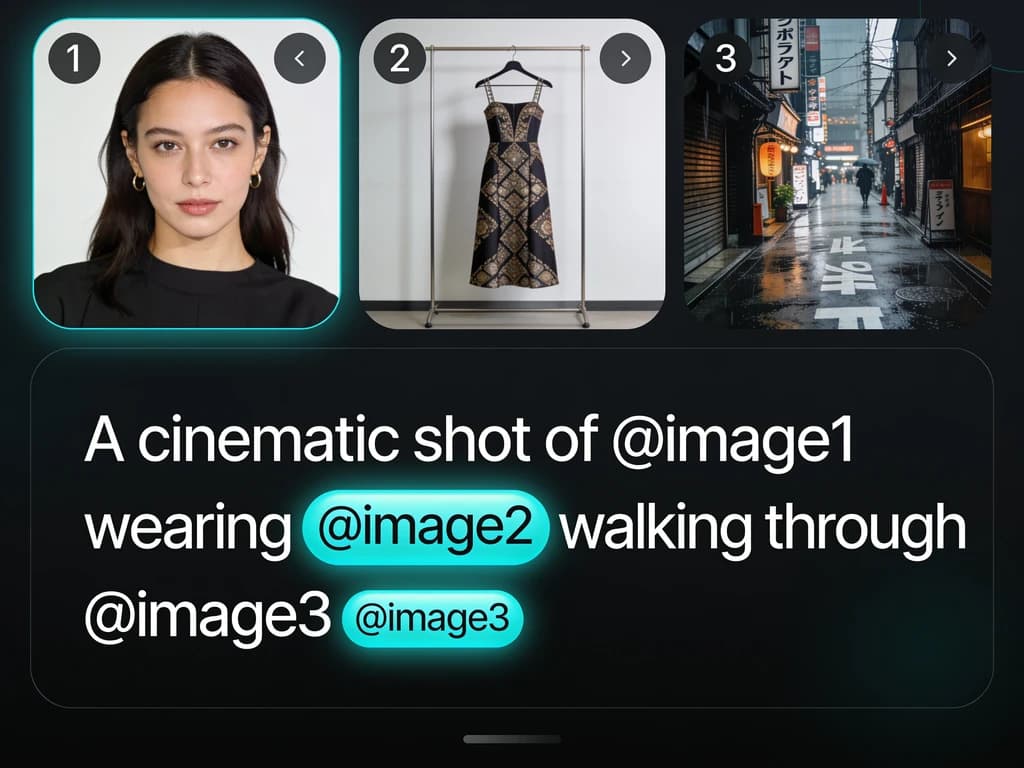
Prompt box casting reference images with @image mentions into an AI video

Cast References with @ Mentions

Don't describe your references — cast them. Type @ in the prompt to name each image: "@image1 wearing @image2 walking through @image3". The AI knows exactly which reference plays which role in your video.

From Product Shots to Marketing Video

Combine a product photo with a model reference and get a ready-to-post marketing clip. Reference to video keeps your product pixel-faithful while the AI builds the scene, motion and lighting around it.
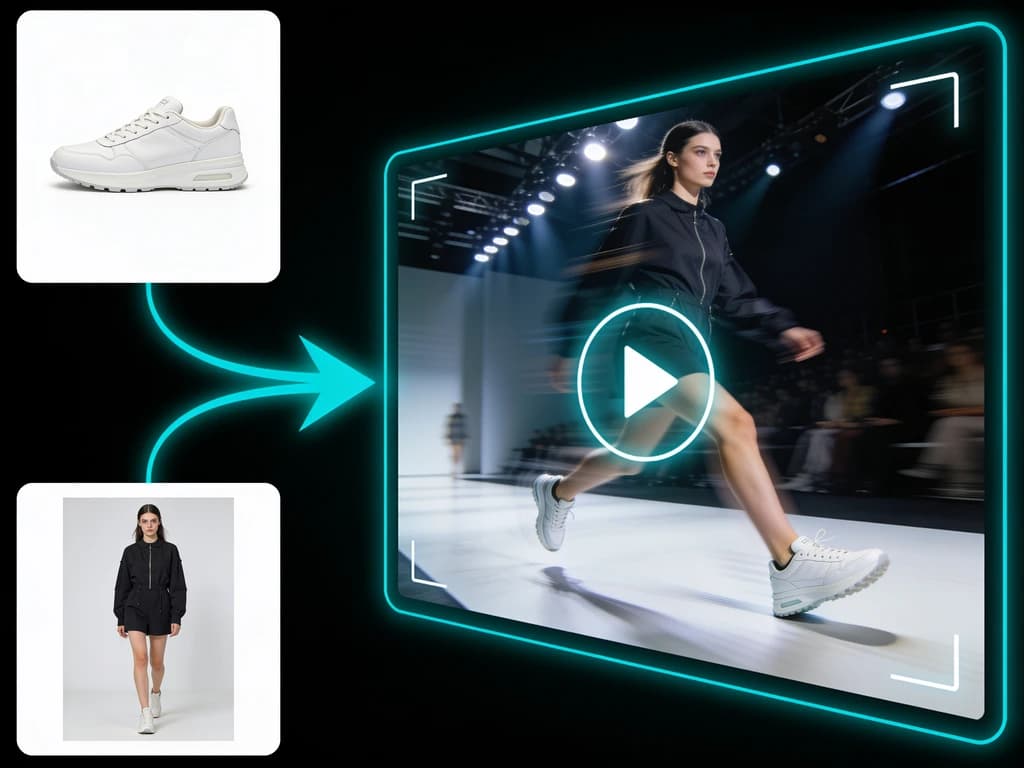
Product photo and model reference turned into a fashion runway marketing video
USE CASES

What Creators Make with Reference to Video

Story & Character Videos

Keep your hero consistent across an entire storyboard. Upload character references once, then generate scene after scene for shorts, trailers and animated stories.

Product & Fashion Ads

Turn flat product photos into moving ads. Cast your product and a model together — the video keeps both faithful while adding cinematic motion.

Virtual Influencers & Avatars

Build a recognizable AI persona. Reuse the same reference set across every video so your virtual influencer always looks like themselves.

PROCESS / N·03

How to Turn Reference Images into Video

  1. 01

    Upload your reference images

    Add up to 10 references depending on the model — faces, outfits, products, scenes. JPG, PNG and WebP are supported.

  2. 02

    Write the prompt and cast your references

    Describe the video. On models with @ mentions, type @ to cast a specific image into a role — @image1 for the character, @image2 for the outfit.

  3. 03

    Pick a model and generate

    Choose from Wan 3.0, Grok Imagine, Seedance 2.0, Vidu Q3 and more. Your reference video renders in minutes and credits are refunded if it fails.

FAQ / REEL NOTES

Reference to Video — FAQ

Q01What is reference to video AI?
Reference to video is an AI generation mode where you upload one or more reference images and the model builds a video around them. Unlike image-to-video, which animates a single picture as the first frame, reference to video uses your images as identity anchors — the character, outfit, product or scene stays consistent while the AI invents the motion and camera work.
Q02How many reference images can I upload?
It depends on the model: Wan 3.0 and Wan 3.0 Prime accept up to 10 references, Seedance 2.0 up to 9, Grok Imagine up to 7, and Vidu Q3 up to 4. The uploader shows the current model's limit and keeps your first images if you switch to a model with a smaller cap.
Q03What do the @image1 mentions in the prompt do?
On models that support slot labels (Grok Imagine, Seedance 2.0, Wan 3.0), @image1 refers to your first reference, @image2 to the second, and so on. Mentioning them in the prompt tells the model exactly which image plays which role — "@image1 dances" animates that specific person. On upload-order models (Vidu Q3, Wan 2.7) references are simply used in the order you added them.
Q04Is reference to video free?
New accounts get free credits to try it. After that, generation is pay-per-use — Grok Imagine reference to video starts at 20 credits per second of output, and reference images themselves are free on every model. Failed generations are automatically refunded.
Q05Which model should I pick for consistent characters?
Grok Imagine is the best value for character consistency with @ mentions. Wan 3.0 handles the most references (10) with positional citation and native audio, and Seedance 2.0 is a strong middle ground with 9 references. If you just need a quick test, start with Grok — it's the cheapest — then upgrade the same prompt to Wan 3.0 Prime for the final render.
Q06What's the difference between reference to video and image to video?
Image to video animates one picture — your photo literally becomes the first frame and starts moving. Reference to video composes a new scene: your images define who and what appears, but the framing, motion and background are generated from the prompt. Use image to video to bring a photo to life, and reference to video to put your character or product into a scene that never existed.
THE FINAL CUT

Turn Your References into Video

Upload a face, an outfit or a product and watch AI build a consistent video around it. Free credits to start, and credits are refunded if a render fails.

Free credits for new accounts · Credits refunded on failure